Beautiful presentations, written in Markdown.
A free presentation app for Mac and Windows. Motion graphics and an AI agent are built in. Every presentation is saved as plain Markdown.

Your slides are Markdown files
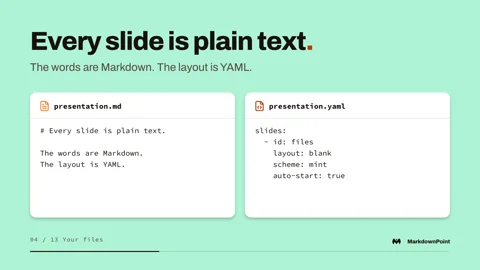
Each presentation is a folder of plain text: the words in Markdown, the layout in YAML. Track every change in Git, edit it in any text editor, and let AI agents work in it like any other repository.

The tools of a design app
MarkdownPoint works like Keynote. Underneath are tools you know from Figma and After Effects.
Motion graphics
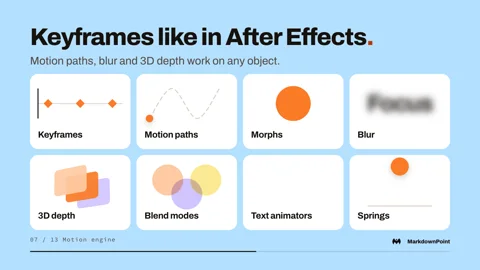
Keyframes and motion paths like in After Effects. Magic Move between slides like in Keynote. Blur and 3D depth on any object.

Snapping
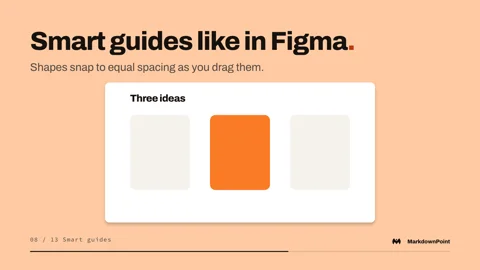
Smart guides like in Figma. Shapes snap to equal spacing, matching sizes and matching angles as you drag, resize and rotate them.

The Agent
Select a few objects and ask: “Turn these into three bold cards with big numbers.” The Agent changes the slide, using your own API key.

Pictures from your words
“Suggest from slide” writes an image prompt from the words on your slide. The prompt is saved with the picture, so you can edit it and generate again.

Everything in one window
Layers like in Figma and presenter notes like in Keynote. The outline, slide list and Agent sit beside the slide.

Edit together live, or take turns
Edit together, free
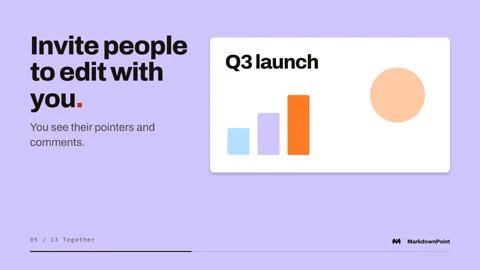
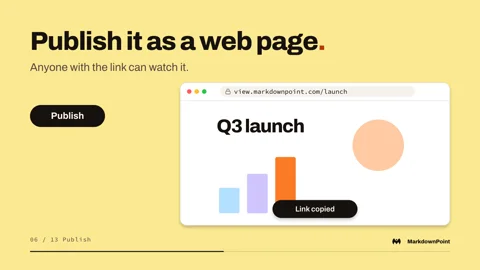
See everyone’s pointer and comment on any slide, like in Figma. When it’s ready, publish it to the web for free.

Take turns in a shared folder
Keep a presentation in Dropbox, OneDrive, Google Drive or iCloud Drive. One person edits while everyone else follows along. Taking turns uses a free account.

What’s in the app
Design
- Smart layouts
- Figma-style snapping to spacing, sizes and angles
- Exact position, size and angle
- Align and distribute
- Grids, guides and rulers
- Any slide size, down to the pixel
- Outline, slide list, layers and presenter notes
- Code with syntax highlighting
Your own designs
- Free themes from the gallery
- Fonts from your computer, embedded in the design
- Brand colors shared by light and dark
- Text styles with size, line spacing and tracking
- InDesign-style grids with columns, gutters, margins and a baseline
- Layouts you add and name
- A design you can share as one file
Motion
- Keyframes, motion paths and morphs
- Blur, 3D depth and blend modes
- Text that arrives word by word or line by line
- Keynote-style Magic Move between slides
AI
- The Agent beside every slide
- Pictures generated from a slide’s words
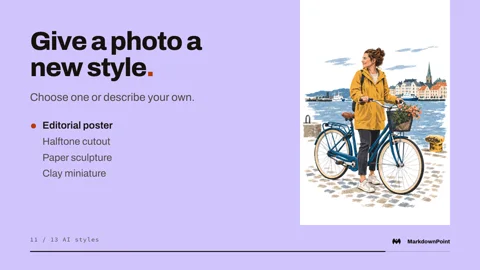
- Image styles, or a change you describe
- Background removal
- Anthropic, OpenAI or Google with your own API key
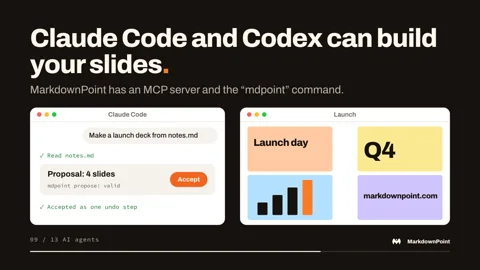
- An MCP server and the “mdpoint” command for AI agents
Present
- A presenter display with notes, the next slide and a timer
- Rehearsal against a talk length
- Laser pointer and black or white screens
Share and export
- Live pointers and comments
- Publishing to the web, free
- Taking turns in Dropbox, OneDrive, Google Drive or iCloud Drive
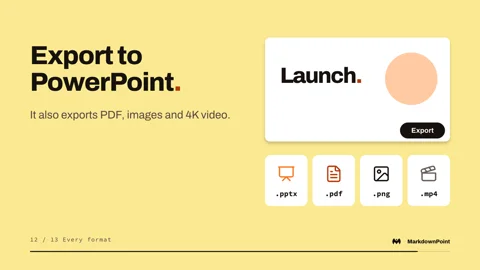
- PowerPoint, PDF, images and 4K video
Built by an industry veteran
Johan Sanneblad, PhD
I have a PhD in Software Development and decades of experience building products for companies like Apple, Electronic Arts, Google, Microsoft, LEGO, Sony and Yamaha.
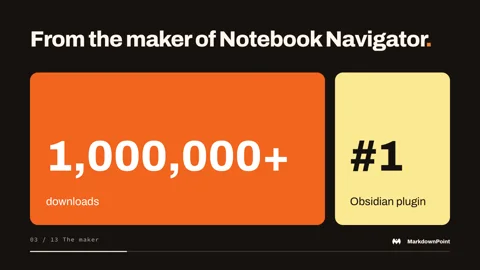
Notebook Navigator is now the most popular file explorer plugin for Obsidian with over a million downloads, but I wrote it for myself. I have always prioritized file over app: I want my notes to outlive the application I write them in. I used Evernote for many years, until its prices rose and its interface changed in ways I didn’t like. I tried Bear, Apple Notes and OneNote, but none of them could export my notes in their raw source format. So I moved to Obsidian. However, I never really got used to its interface. Mixing folders with files scales poorly when you have thousands of notes, and bookmarks, tags, properties and search were all in different windows. And the great things in all the other apps, like image and text previews, were missing completely. So I wrote Notebook Navigator.
MarkdownPoint started the same way. I give two or three presentations a week, and I have never really liked PowerPoint or Keynote. Their compressed, proprietary formats make it hard to work together and to keep track of versions. They are just as hard for an AI agent to work in. Canva is web-only with several limitations, and I don’t own my files there. So I wrote MarkdownPoint for myself, and I’m sharing it with the world for free. Use it if you like it, and please let me know how I can improve it.
Connect with me on LinkedInBuy me a coffee
Community
Ask me anything on Discord, and share what you make on r/markdownpoint.

Free for Mac and Windows
For personal and commercial use. No subscription, no in‑app purchases and no account needed to use it.