Animate
Move objects between slides with Magic Move
Duplicate a slide, change where things are, and Magic Move animates every object from one slide to the next. It works like PowerPoint’s Morph.
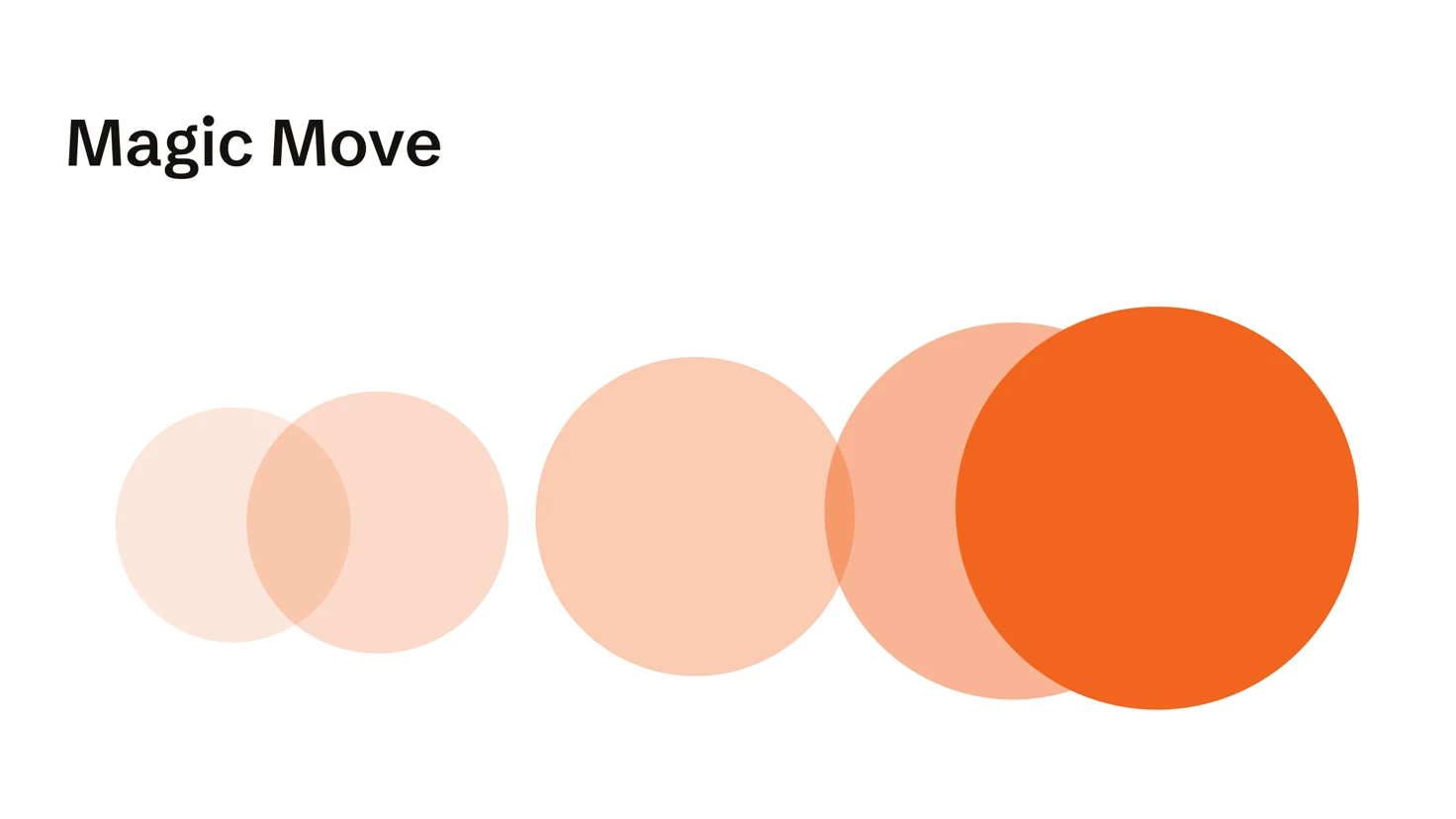
Magic Move animates the objects two slides share. Each one moves, resizes, turns and changes color from where it is on one slide to where it is on the next, and everything else crossfades. Keynote calls this Magic Move too, and PowerPoint calls it Morph.
Make the next slide from this one
- Select the slide and choose Edit › Duplicate Slide (⌘D). The copy keeps the same objects, which is how Magic Move knows which object is which.
- On the copy, move, resize or recolor the objects, change their words, delete some or add new ones.
Turn on Magic Move
- Go back to the first slide and click an empty part of it, so nothing is selected.
- In the sidebar, click Animate.
- Under Slide transition, choose Magic move from the transition menu.
- Set its length in seconds beside it, and its Acceleration: Linear, Ease in, Ease out, or Ease in and out.

The transition belongs to the slide you leave: it plays as you advance to the next one. To use Magic Move between every pair of slides, set it as the presentation’s default in the Presentation tab, under Slide transitions.
Move words, not just text boxes
Match decides what counts as the same object:
- By object: each object moves as a whole. A text box whose words changed crossfades instead.
- By word: words both slides share fly to their new places, so a sentence can rearrange itself.
- By character: letters both slides share move, so one word can turn into another.
When an object fades instead of moving
An object moves only if both slides show it. If the next slide brings it in with a build, it isn’t there yet when the slide appears, so it fades. The Animate tab tells you so and offers Show it from the start.
Download the finished presentation (ZIP)
Unzip it, then open the folder inside in MarkdownPoint.
Written for MarkdownPoint 0.8.2. On Windows, press Ctrl for ⌘ and Alt for ⌥.