Code
Put code on a slide with syntax highlighting
Insert a code block, choose its language and show line numbers. The code stays text you can edit, highlighted in the slide’s own colors.
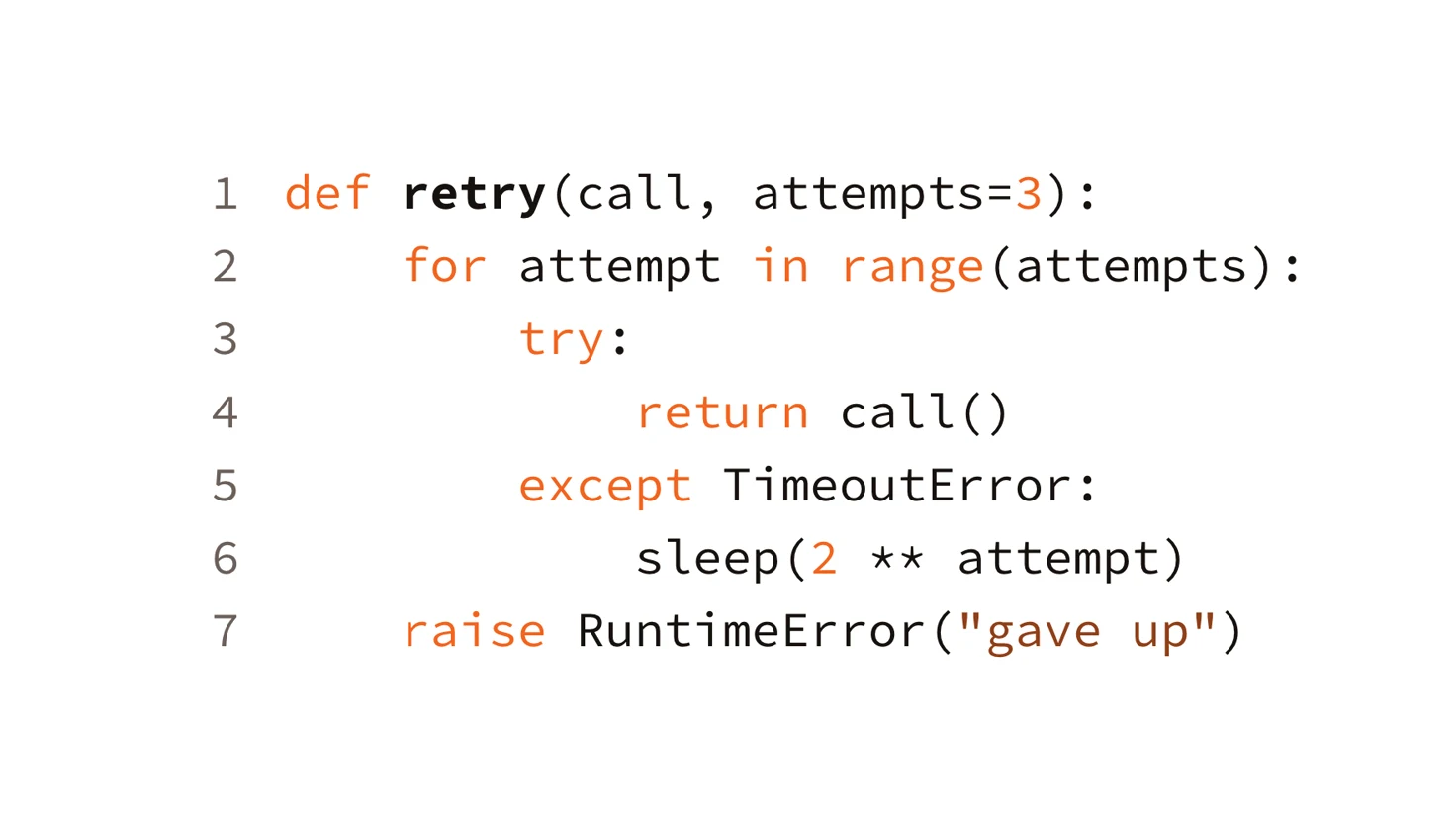
A code block keeps your code as text, so you can still fix a typo on the slide, and highlights it in the colors of the slide’s color scheme.
Add a code block
- Choose Insert › Code Block. A code box appears in the middle of the slide, ready for typing.
- Type your code, or paste it from your editor.
- Press Esc when you’re done.
Choose the language and line numbers
- Select the code box. In the sidebar, click Style and find the Code section.
- Choose the language from the Language menu.
- Select Line numbers to number each line.
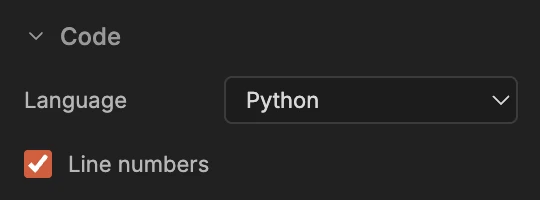
The languages are Bash, C, C#, C++, CSS, Diff, Go, HTML and XML, Java, JavaScript, JSON, Kotlin, Markdown, PHP, Python, Ruby, Rust, SQL, Swift, TypeScript and YAML. Plain text shows the code without highlighting, and Mermaid diagram draws the code as a diagram instead.
Keywords and numbers take the scheme’s accent color, strings a blend of the accent and the text color, function and class names turn bold, and comments are muted. The code is set in the design’s monospaced font.
Fit the box to the code
If code runs past the box, a small red mark appears at the box’s corner. Click it to grow the box to the code’s height, or double-click the handle on the box’s right side to widen it to the longest line.
In the Markdown file
The code is an ordinary fenced block in the presentation’s presentation.md, with the language after the backticks and {lines:true} for line numbers:
```python {lines:true}
def retry(call, attempts=3):
    for attempt in range(attempts):
```
Download the finished presentation (ZIP)
Unzip it, then open the folder inside in MarkdownPoint.
Written for MarkdownPoint 0.8.2. On Windows, press Ctrl for ⌘ and Alt for ⌥.