Animate
Make text appear one by one
Bring a list in one point per click, or let a sentence arrive word by word or line by line, with the Animate tab.

A presentation shows each point when you get to it: one per click, or a line that builds in as you speak. If you know PowerPoint, this is what Effect Options does with By Paragraph and By Word; in Keynote it is a build’s Delivery.
Show one point per click
- Click the text box that holds the list to select it.
- In the sidebar, click Animate. If the sidebar is hidden, choose View › Sidebar (⌥⌘I).
- Click Reveal paragraphs one by one.
Each paragraph or list item becomes a step of its own under Steps, and each waits for a click when you present. Click Preview to watch them in the editor.
Let words or lines arrive on one click
- Select the text box.
- In the Animate tab, open the Enter menu and choose Word by word or Line by line. Hold the pointer over an effect to preview it on the slide.
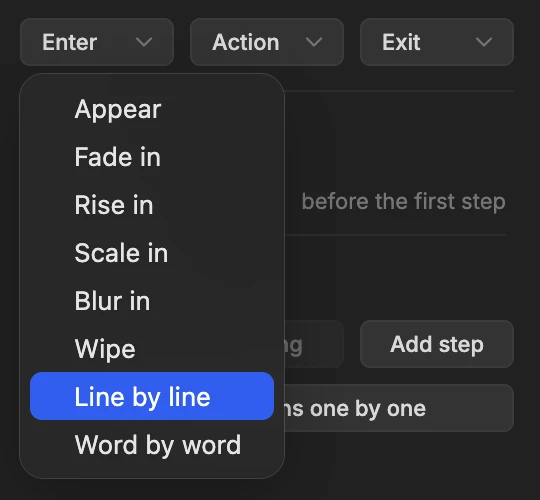
On one click, the words or lines then arrive one after another. Line by line is offered when the text has more than one paragraph, and Word by word when it has more than one word.
To change how they arrive, select the step under Steps and set:
- Delivery: Row, Word, Character, or Character and space. Character brings a line in letter by letter.
- Delivery order: Forwards, Backwards, Center to ends, Ends to center, or Random.
- Duration and Delay, in seconds.
Start without a click
Under Steps, set Start first step to After transition and the first step plays as soon as the slide appears. To chain the next one, select it and set Start to After previous step.
Present it
Choose Present › Present from Current Slide (⌥⌘P). A click, →, ↓, Space or Return plays the next step, and ⇧← takes one back.
Download the finished presentation (ZIP)
Unzip it, then open the folder inside in MarkdownPoint.
Written for MarkdownPoint 0.8.2. On Windows, press Ctrl for ⌘ and Alt for ⌥.