Agents
Connect an AI agent to MarkdownPoint
Let Claude Code, Codex, Claude Desktop, Cursor and other AI agents open, change, render and export your presentations through the mdpoint command and its MCP server.
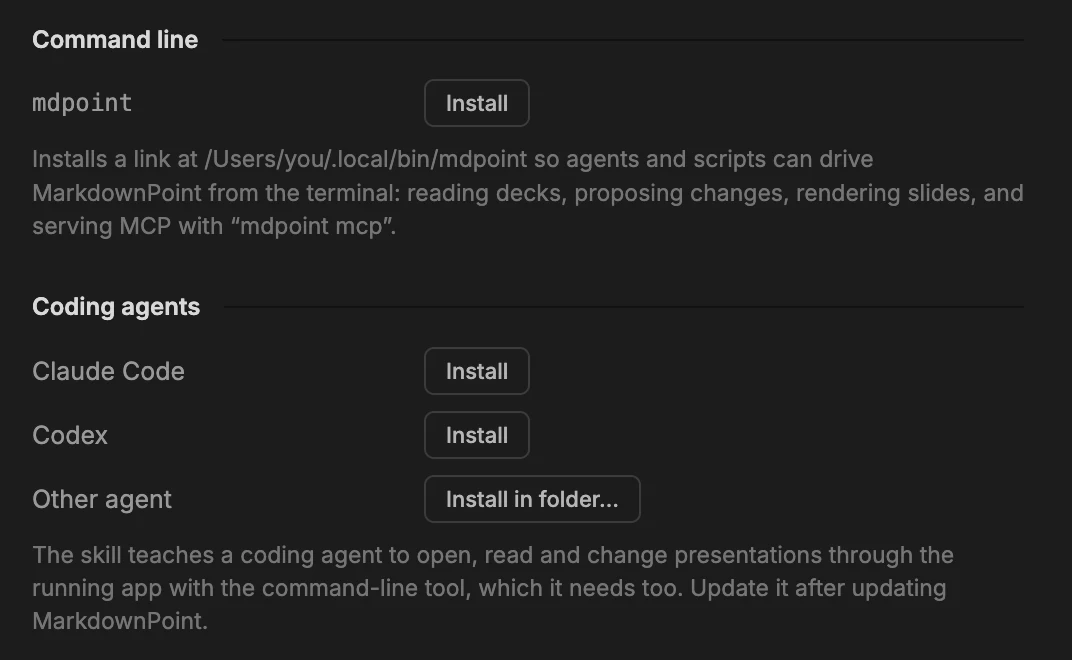
MarkdownPoint comes with a command, mdpoint, through which an AI agent works on the presentations open in the app: it creates them, changes slides and their animation, renders slides to check its work, and exports them. Agents that use MCP servers get the same through mdpoint mcp.
Why the command and the skill
An agent such as Claude Code works by running commands in a terminal. It can’t click in MarkdownPoint. mdpoint is the command it runs to reach the open app: to read a presentation, change its slides, render them and export them.
The skill is MarkdownPoint’s guide for agents. It tells the agent to use mdpoint when you ask for slides, and how: open a presentation, read its slides, propose changes and check them in a rendered preview. Without it, the agent doesn’t know MarkdownPoint is there.
Apps that use MCP servers, such as Claude Desktop, need only the command. The MCP server tells them what it can do.
Turn on the command
- Choose MarkdownPoint › Settings… on a Mac, or File › Settings… on Windows.
- In General, under Command line, click Install. On a Mac this puts
mdpointin~/.local/bin; on Windows it adds MarkdownPoint’s own folder to your PATH.
Keep MarkdownPoint open while an agent works: the command talks to the running app. Open a new terminal window afterwards so it finds the command.
Claude Code and Codex
Under Coding agents, click Install beside Claude Code or Codex. That adds the MarkdownPoint skill to the agent. For another coding agent, Install in folder… puts the skill wherever that agent reads skills. Install it again after you update MarkdownPoint.
Then ask in your own words, such as “Make a four-slide talk in MarkdownPoint about rehearsing, on the Basic design.” Create PowerPoint slides with Claude Code goes through a whole presentation this way.
Connect through MCP
Apps that use MCP servers, such as Claude Desktop, Cursor, VS Code and Gemini CLI, connect to a server named markdownpoint whose command is mdpoint with the argument mcp.
In Claude Code:
claude mcp add --scope user markdownpoint -- mdpoint mcp
In an app’s MCP settings, the server looks like this:
{
  "mcpServers": {
    "markdownpoint": {
      "command": "/Users/you/.local/bin/mdpoint",
      "args": ["mcp"]
    }
  }
}
On a Mac, an app you start from the Dock doesn’t see ~/.local/bin, so give the full path with your own user name in place of you. On Windows, "command": "mdpoint" works once the app is restarted after you install the command, or give the full path, C:\Users\you\AppData\Local\Programs\markdownpoint\resources\bin\mdpoint.exe, writing each \ as \\ inside the JSON. Each app’s own guide says where its MCP settings are: Claude Desktop, Cursor, VS Code, Codex and Gemini CLI.
What happens to your slides
Each change an agent commits arrives in the open window as one step, and Edit › Undo takes it back. A change an agent leaves for you to decide shows in a bar above the slides, where Review… lets you look it over before you accept or reject it.
If it doesn’t work
- “Is MarkdownPoint running?”: open MarkdownPoint, then try again.
- The command isn’t found: install it in Settings, then open a new terminal window. If your shell doesn’t look in
~/.local/bin, Settings offers Add to PATH under Command line. - An app can’t start the server: give the full path to
mdpoint, then quit the app completely and open it again.
Written for MarkdownPoint 0.8.3. On Windows, press Ctrl for ⌘ and Alt for ⌥.