Get started
Make your first presentation
Choose a theme, or add one from Themes, type on the slides, add the slides you need and present. MarkdownPoint saves as you go, as Markdown files you own.
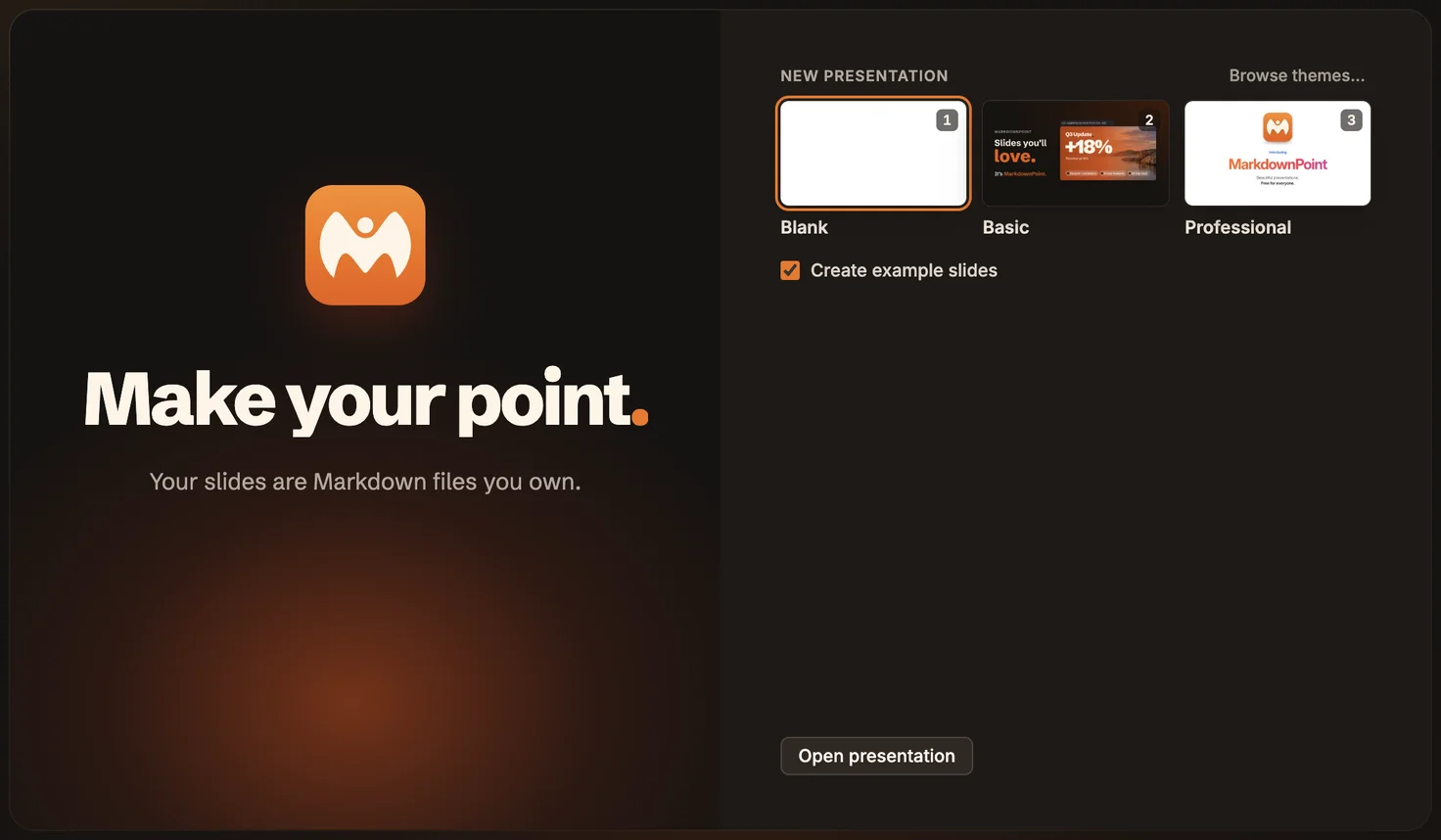
MarkdownPoint is free for Mac and Windows. Download it, open it, and the welcome window is where every presentation starts.
Choose a theme
- Keep Create example slides selected to start with slides that show what the theme can do, or clear it to start with one empty slide.
- Under New presentation, click Blank, Basic or Professional, or press 1, 2 or 3. Blank starts with one empty slide, without examples.
- Name the presentation, choose where to keep it, and click Create.
With a presentation already open, choose File › New Presentation… (⌘N). Choose a theme offers the same themes, and every theme you added; choose one, click Create, then name the presentation.
Add a theme from Themes
Every other theme is free in Themes, made by people who use MarkdownPoint.
- In the welcome window, click Browse themes…, or choose File › Browse Themes….
- Search, or choose a category, and click a theme to see its slides.
- Click Add theme. It is then one of your themes, wherever you choose one.
On the website, a theme’s page has Add to MarkdownPoint, which opens the theme in the app.
Type on the slides
Double-click a placeholder, such as Title or Body, and type. Press Esc when you’re done. To put text anywhere else, click Text in the toolbar, then click the slide.
Add slides
- Choose Slide › Add Slide… (⇧⌘N), or click + above the slide list.
- In Insert a slide, choose a layout. The new slide is added after the current one.
To build on a slide you already have, choose Edit › Duplicate Slide (⌘D).
Present
Click Present in the toolbar to start from the current slide, or choose Present › Present from Beginning (⌥⇧⌘P). A click, → or Space moves on. Press ? to see every key, and Esc to stop.
Your presentation is a folder
There is no Save to remember: MarkdownPoint saves a moment after each change. A presentation is a folder that holds your words in presentation.md, the layout in presentation.yaml, your pictures and videos in media, and a copy of its theme. You can keep it in a synced folder or in Git, or open the Markdown in any editor. The welcome window lists recent presentations, and Open presentation opens any other.
Download the finished presentation (ZIP)
Unzip it, then open the folder inside in MarkdownPoint.
Written for MarkdownPoint 0.8.3. On Windows, press Ctrl for ⌘ and Alt for ⌥.