Themes
Publish your design as a theme
Put a presentation’s design in Themes on markdownpoint.com, where anyone can add it to MarkdownPoint. The presentation becomes the theme’s example.
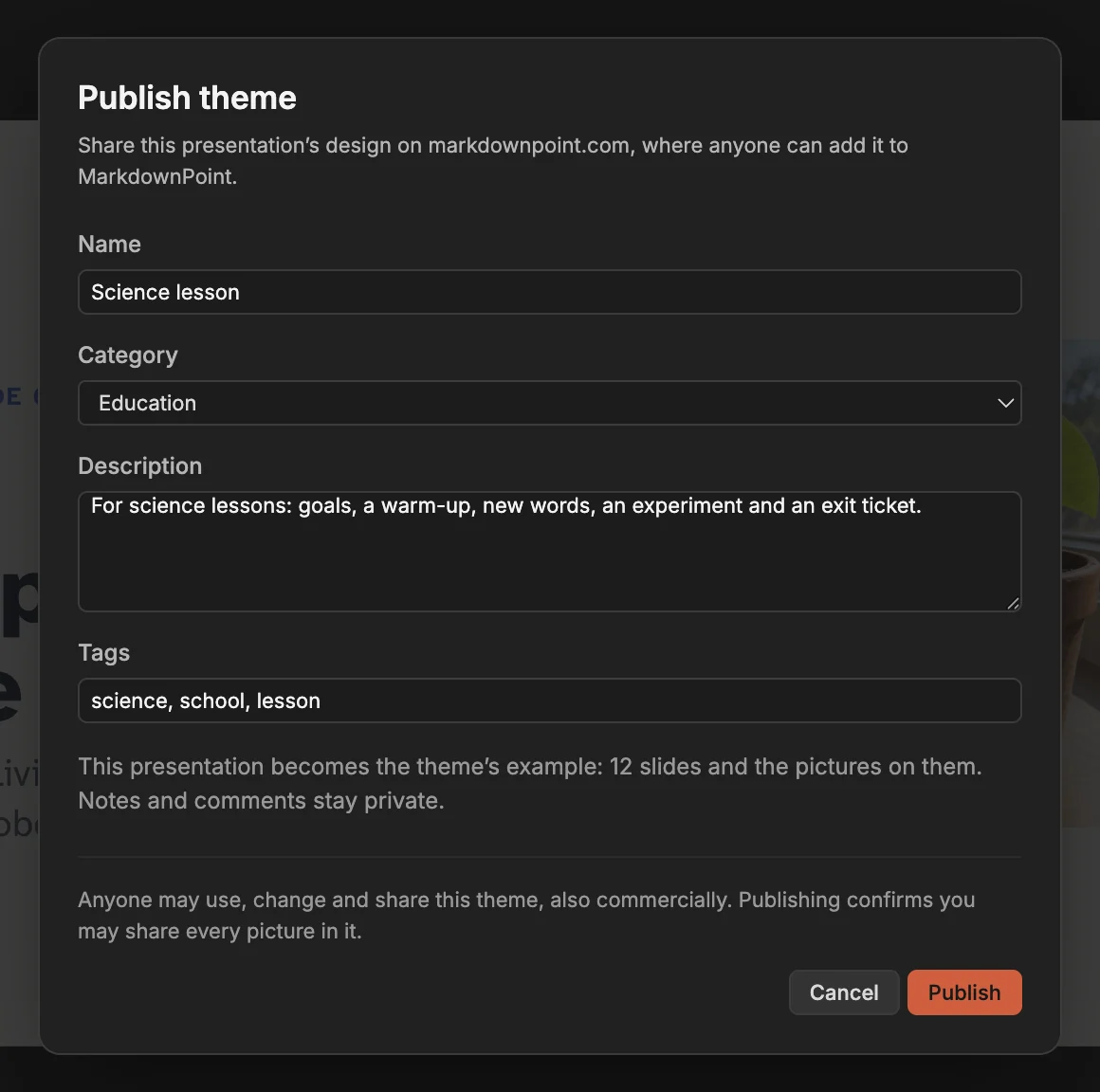
A design you make in MarkdownPoint can go in Themes, where anyone can add it to MarkdownPoint for free. Make your first presentation shows how to add one yourself.
Publish
- Open the presentation whose design you want to share. Its slides become the theme’s example, with the pictures on them. Notes and comments stay private.
- Choose File › Publish Theme….
- Sign in with your MarkdownPoint account. The first time, give the Public author name your themes show.
- Check the Name and choose a Category. Add a Description of what the theme is for, and Tags people can search for.
- Click Publish.
markdownpoint.com checks every word and picture before it lists the theme, which may take a few minutes. View on markdownpoint.com then opens the theme’s page.
What a theme can hold
- The fonts MarkdownPoint includes. A font embedded from your computer can’t travel in a theme.
- PNG, JPEG and SVG pictures.
- Words and pictures without explicit sexual content or abuse. markdownpoint.com refuses a theme that has them, and says what to change.
Blank, Basic and Professional as MarkdownPoint ships them can’t be published. Change the design first.
Anyone may use, change and share a published theme, also commercially. Publishing confirms you may share every picture in it.
Publish an update
Change the design or its example, then choose File › Publish Theme… again. The sheet says it publishes an update of your theme. Click Publish update. People who add the theme from then on get the new version.
Remove a theme
Sign in on markdownpoint.com, open your theme’s page, and click Remove from Themes. Anyone who already added it keeps it, and so do presentations made with it.
Written for MarkdownPoint 0.8.3. On Windows, press Ctrl for ⌘ and Alt for ⌥.