3D
Add a 3D model
Insert a GLB or glTF file, or describe a model and have Meshy make it. It lands on a floor, lit and casting a shadow.
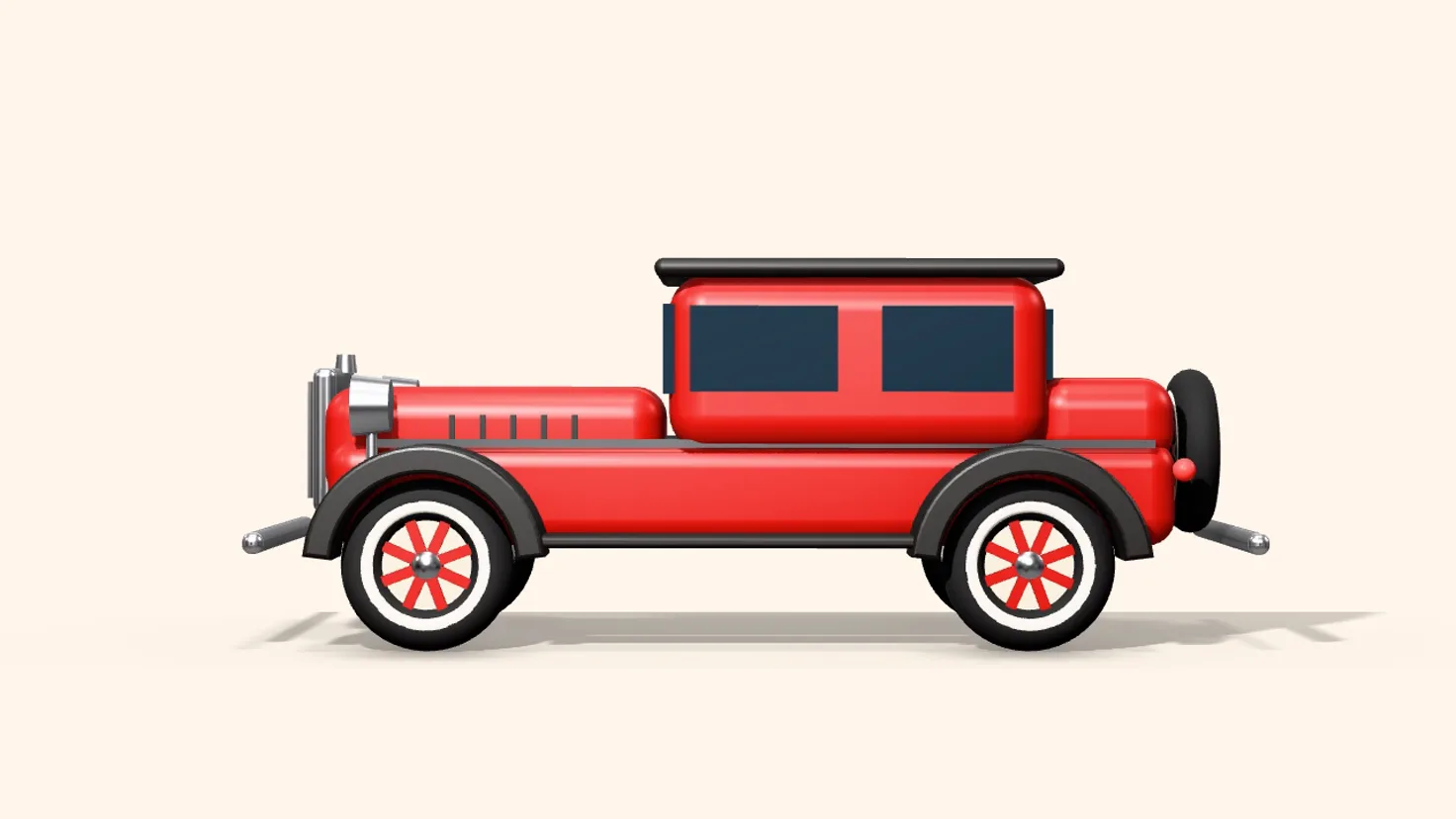
A 3D model is lit by the slide’s lights and seen through the slide’s camera. Text and images in front of it in Layers stand in front of the 3D.
Insert a model file
- Choose Insert › 3D Model….
- Click Choose file… and pick a GLB or glTF file.
- Click Insert.
A glTF file can use the files in its own folder. MarkdownPoint packs them in. A GLB file must hold everything itself. A model’s images must be PNG, JPEG, WebP or KTX2. Its own cameras and lights are left out.
Or drag a GLB or glTF file from the Finder or File Explorer onto the slide. It stands where you drop it and gets the same floor and lights. A model already in the Media list can be dragged onto the slide the same way.
Dropped on the Media list instead, the file joins the media in that folder without being placed.
Have Meshy make one
Meshy makes a model from a description. It uses your own Meshy key and Meshy’s credits.
- Add your key once: choose Settings… (⌘,) and click AI. Under API keys, click Add key in the Meshy row.
- Choose Insert › 3D Model… and describe the model under Description: “A red toy rocket”.
- Choose its Kind: Object, or Character for a figure that can get a rig.
- Click Generate preview. Meshy draws the model’s front first.
- Click Build this model, or Try another preview. Each button shows its cost in Meshy credits.
- Click Insert.
To start from an image, select one PNG, JPEG or WebP image on the slide first. Meshy builds from it instead of a preview. The finished model is saved in the presentation’s media folder.
A character can get a rig and motions before you insert it. See Animate a 3D character.
Where it lands
The model stands centered near the bottom of the slide. It’s half the slide’s height tall. A slide without 3D gets a stage with it:
- a Floor that shows only the shadows that fall on it;
- two spot lights, Key and Top, that cast shadows;
- light from all around, and Fast GI.
If the slide’s World already gives light, the model gets only the Floor and Fast GI.
To change the light, see Light a 3D scene.
Make it bigger or smaller
Select the model on its own and drag a corner of its box. It scales evenly, and the opposite corner stays where it is. Hold ⌥ as you drag to scale it about its own origin instead. While you edit a step, the drag adds Scale keyframes at the playhead. The model reaches the new size at that moment.
For exact values, use Scale in the Arrange tab. Its X, Y and Z are factors: at 1, the model is the size it was made at.
One kind of 3D per slide
A slide can’t have both a 3D model and a tilted group. Put a tilted group on a slide of its own.
In exports
Movies play the 3D as it moves. PDF and PNG show it as it ends. PowerPoint gets the slide’s 3D as one image.
Written for the next MarkdownPoint release. On Windows, press Ctrl for ⌘ and Alt for ⌥.