Share
Edit a presentation together
Share a presentation with the people you add by email. Everyone edits it at the same time and sees the others’ pointers and comments.
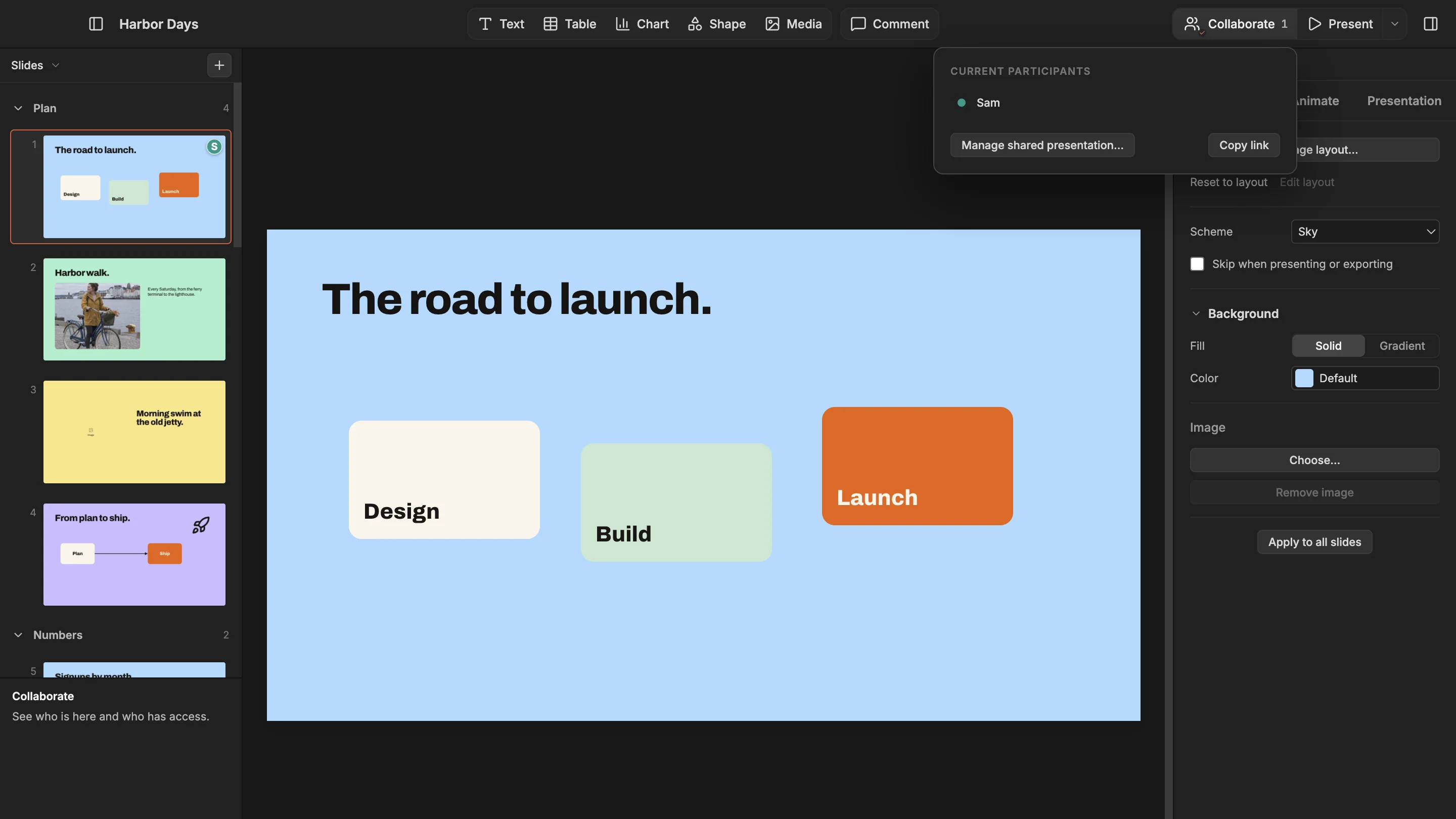
Everyone you add edits the same presentation at once. A change one person makes shows up for the others right away. Two people can type in one text box or one slide’s presenter notes at the same time.
Share a presentation
- Click Share in the toolbar.
- If MarkdownPoint asks, sign in with your MarkdownPoint account. It emails you a code.
- Under Add people, type the email addresses of the people to edit with, separated by commas.
- Click Share.
The button now reads Collaborate. MarkdownPoint emails each person you added a link to the presentation. The email names you. A reply reaches you.
If MarkdownPoint can’t confirm that an email went out, it says so under Add people. Click Collaborate, then Copy link, and send that person the link.
Everyone you add can edit. Only you can add people, remove them or stop sharing.
Join a presentation someone shared
On a computer with MarkdownPoint, click the link in the email, then Open in MarkdownPoint. Or open a link someone sent you. If you aren’t signed in, MarkdownPoint asks you to. Use the email address you were added with. The presentation then opens.
Signed in with another address, you’ll see “You don’t have access to this presentation.” Ask to be added with that address.
See who’s here
- Collaborate lists the people in the presentation right now. Click a name to go to their slide.
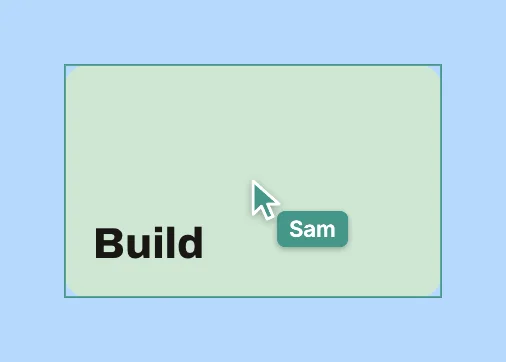
- Each person’s pointer moves across the slide with their name beside it. View › Hide Collaborators’ Pointers hides them.
- What someone selects gets an outline in their color and their name. The slide list shows who is on which slide.
Comment on a slide
- Click Comment in the toolbar, or press C.
- Click the spot on the slide you’re commenting on.
- Write the comment and click Post.
Everyone with access reads the comment under Comments and can reply. Resolve thread hides a finished thread. To see it again, open Comment options and choose Show resolved comments.
What’s shared
The slides, their presenter notes, images, videos and comments are shared with everyone you add.
The design stays as it was when you shared. While the presentation is shared, nobody can change or edit the design. Nobody can change the slide size either.
If your connection drops, keep working. Your changes go out when it’s back. Adding an image or a video needs the connection.
A presentation in a synced folder, such as Dropbox, can’t be shared this way. People take turns editing it instead. To share it live, save a copy outside that folder.
Add or remove people, or stop sharing
Click Collaborate, then Manage shared presentation….
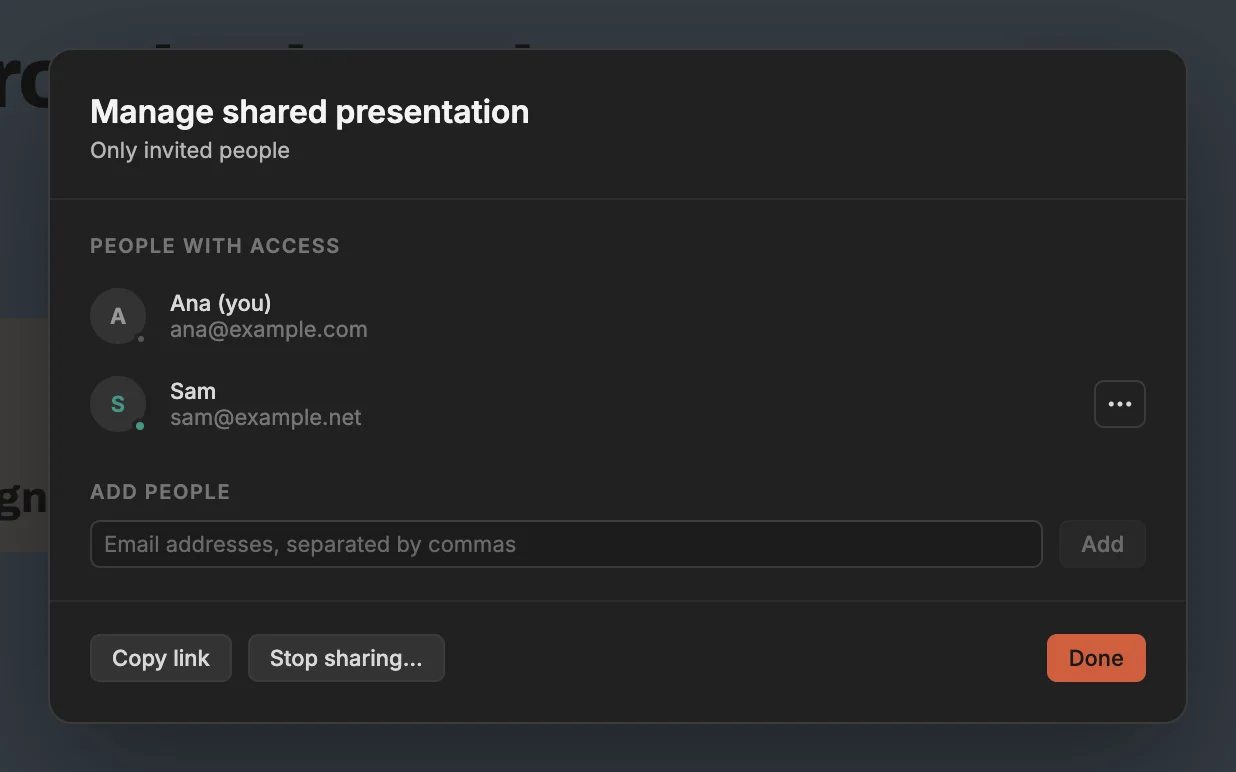
- To add people, type their addresses under Add people and click Add.
- To remove someone, click … beside their name and choose Remove access.
- To leave a presentation someone else shared, choose Remove me in your own row.
- To end sharing for everyone, click Stop sharing…. You keep your copy.
When someone’s access ends, MarkdownPoint tells them “Collaboration ended.” Their copy closes and moves to the Trash. On Windows, it moves to the Recycle Bin. To keep a copy of your own first, choose File › Save a Copy….
The Privacy page says where a shared presentation is kept and for how long.
Written for the next MarkdownPoint release. On Windows, press Ctrl for ⌘ and Alt for ⌥.