3D
Animate a 3D character
Play the walks, runs and gestures a model carries, time them with the slide’s steps, and turn a head toward the camera.
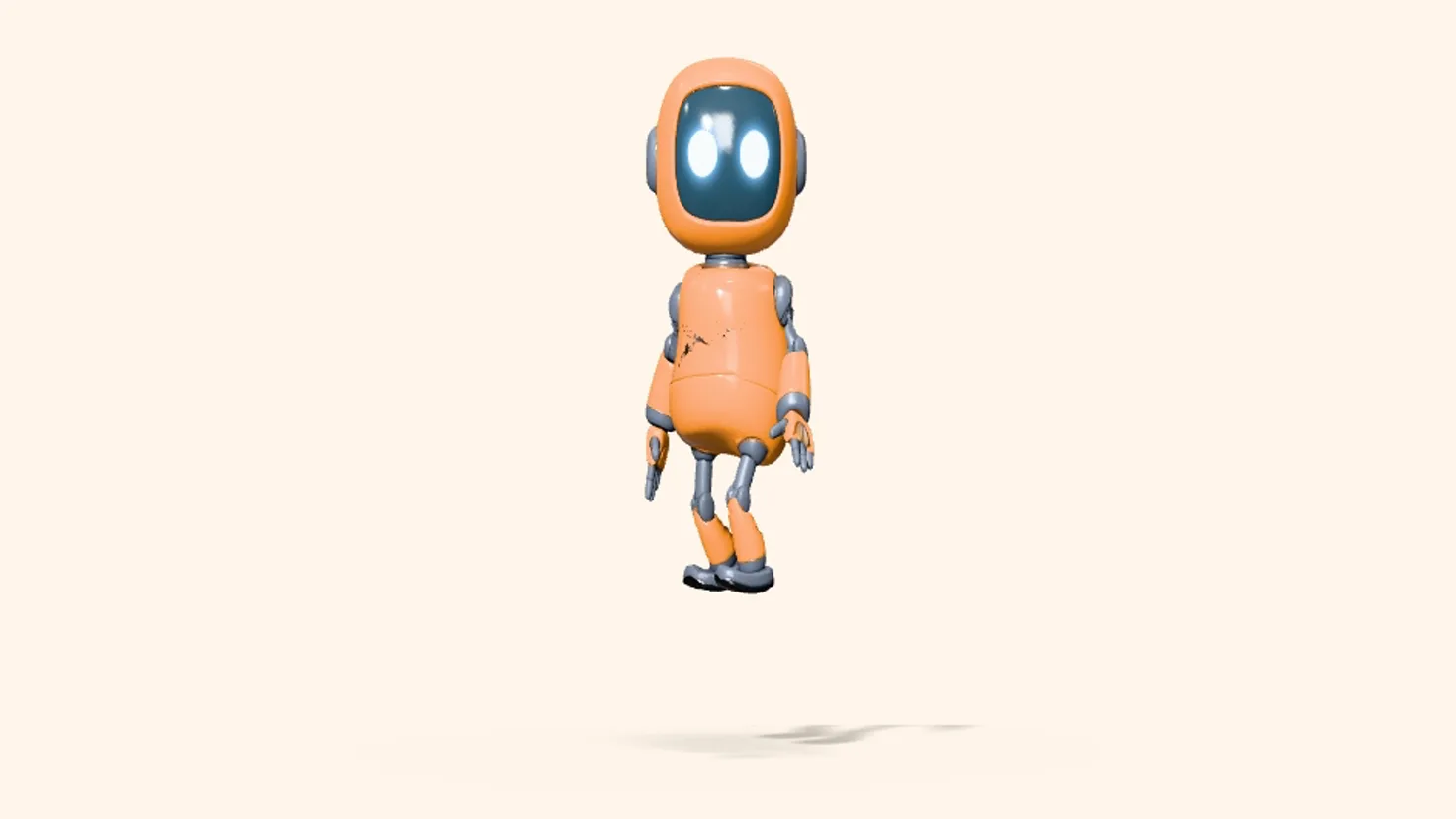
A 3D model can carry animations, called Actions: a walk, a run, a wave. MarkdownPoint plays them in the slide’s steps with everything else that moves.
Get a character that moves
Actions come with the model file. A character Meshy makes can get them too. It uses your own Meshy key and Meshy’s credits.
- Choose Insert › 3D Model…, describe the character and set Kind to Character.
- Click Generate preview, then Build this model.
- Click Rig character. The character comes with the Actions Walk and Run.
- Under Motions, search Meshy’s library and click Add motion. Each motion becomes an Action.
- Click Insert.
Play an Action
- Select the model. In the inspector, click Animate.
- Select the step that should play it. With no step selected, a new step is added.
- Click Add Action and choose one. Point at an Action to preview it.
The Action plays from the playhead. Under its name:
- Strip start starts the Action that many seconds into the step.
- Loop plays it again each time it ends.
- Blend in is how many seconds the Action takes to blend in from what the model was doing.
- Playback scale slows it down or speeds it up. At 2 it plays at half speed.
When the model only plays an Action in the step, Duration shows the Action’s length. Type a new one, and Playback scale changes to fit it.
Click Timeline to see each Action as a bar in the Actions row. Drag a bar to move it in time.
Walk along a path
When a model’s move bends along a path, select Align to path in the step’s timing to turn the model the way it travels. A walk cycle the Agent sets up keeps pace with the distance covered. The feet don’t slide. Its Playback scale is dimmed: “The Action’s speed follows how far the model travels.”
Turn a head toward the camera
- Select the model. In the inspector, click Arrange.
- Under Constraints, click Add constraint and choose Damped track.
The model’s head turns toward the camera. A model without a bone named Head turns as a whole. Change the Owner bone, or choose Whole model to turn the whole model. Set Target to another model, a light or the camera. Influence goes from 0 to 1 and sets how far it turns. It can change from step to step.
Written for the next MarkdownPoint release. On Windows, press Ctrl for ⌘ and Alt for ⌥.