3D
Move a 3D model with another
Give a model or a light a parent, such as a cup in a character’s hand. It follows the parent and stays where you put it.
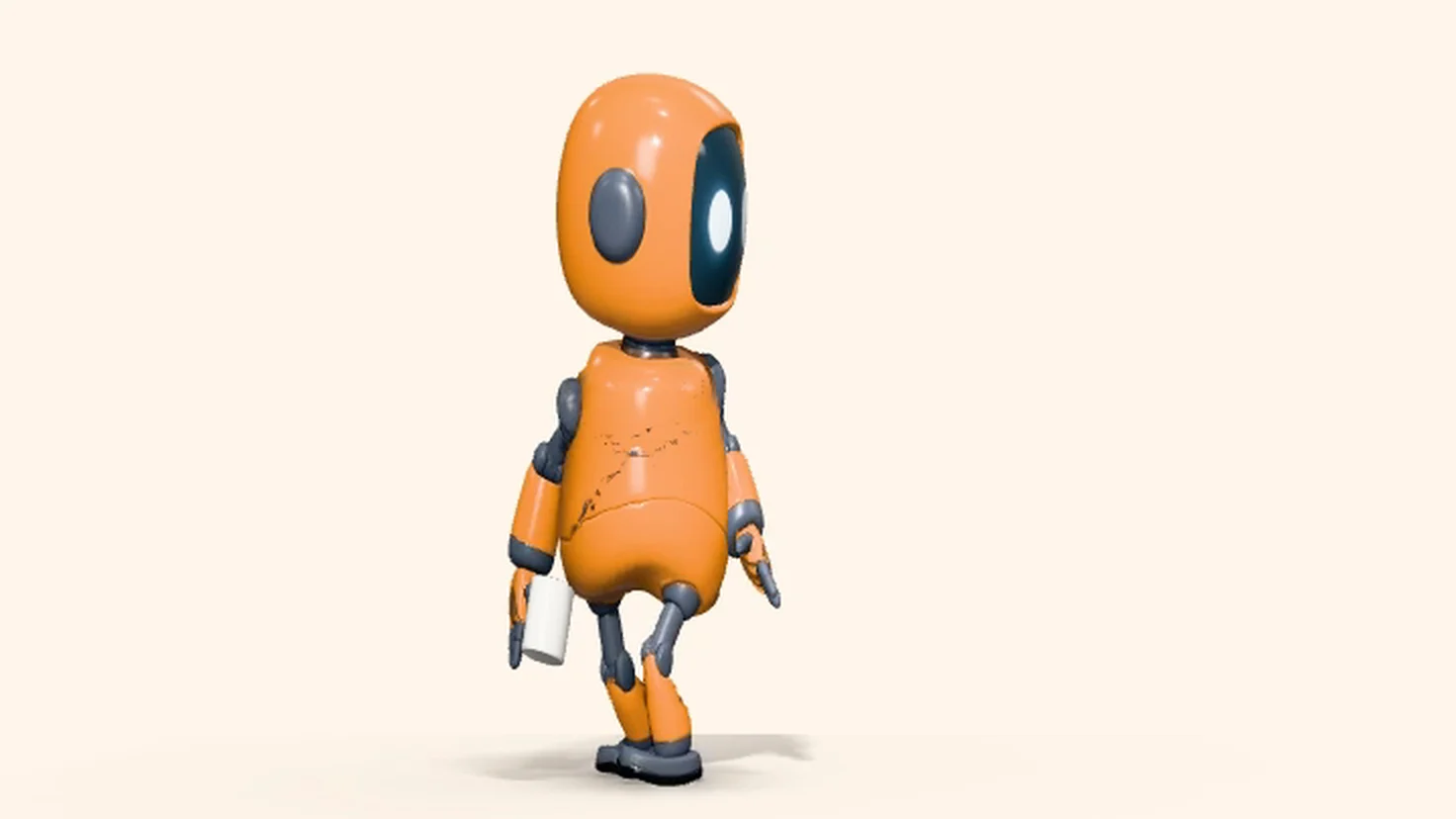
A model or a light can move with another model or light. Give it a parent and it follows every move the parent makes. Give it one of the parent’s bones and it follows that bone. A cup can follow a character’s hand.
Choose a parent
- Make sure no step is selected. You’re then editing the slide itself.
- Select the model. In the inspector, click Arrange and find Relations. For a light, it’s on the Light tab.
- Choose the parent from the Parent menu.
- If the parent has bones, choose one from Parent bone. Whole model follows the model itself.
The child stays where it stands, and its X, Y and Z keep their values. They stay the same as it moves with the parent.
Or drag it in Layers
Drag the child’s row onto the parent’s row. Layers nests it under its parent. Drag it out among the other rows to free it.
Free it again
Choose None from Parent. The model stays where it stands and moves on its own again.
Edit › Undo names these changes Set Parent and Clear Parent.
What to know
- Only models and lights take parents. 3D text and shadow catchers move on their own.
- A parent is set for the whole slide. With Start or a step selected, the menus are dimmed: “Change the parent in Base.” Click Done to get back to the slide.
- Deleting a parent leaves its children where they stand.
- Select a parent and its children, then duplicate or copy them, and the copies stay together. A parent duplicated alone is copied without its children.
- A child duplicated alone keeps its parent. A child copied alone is pasted without its parent.
Written for the next MarkdownPoint release. On Windows, press Ctrl for ⌘ and Alt for ⌥.