Draw
Combine shapes into one
Join shapes into a new one, keep only where they overlap, or cut one out of another, such as a crescent moon out of two circles.
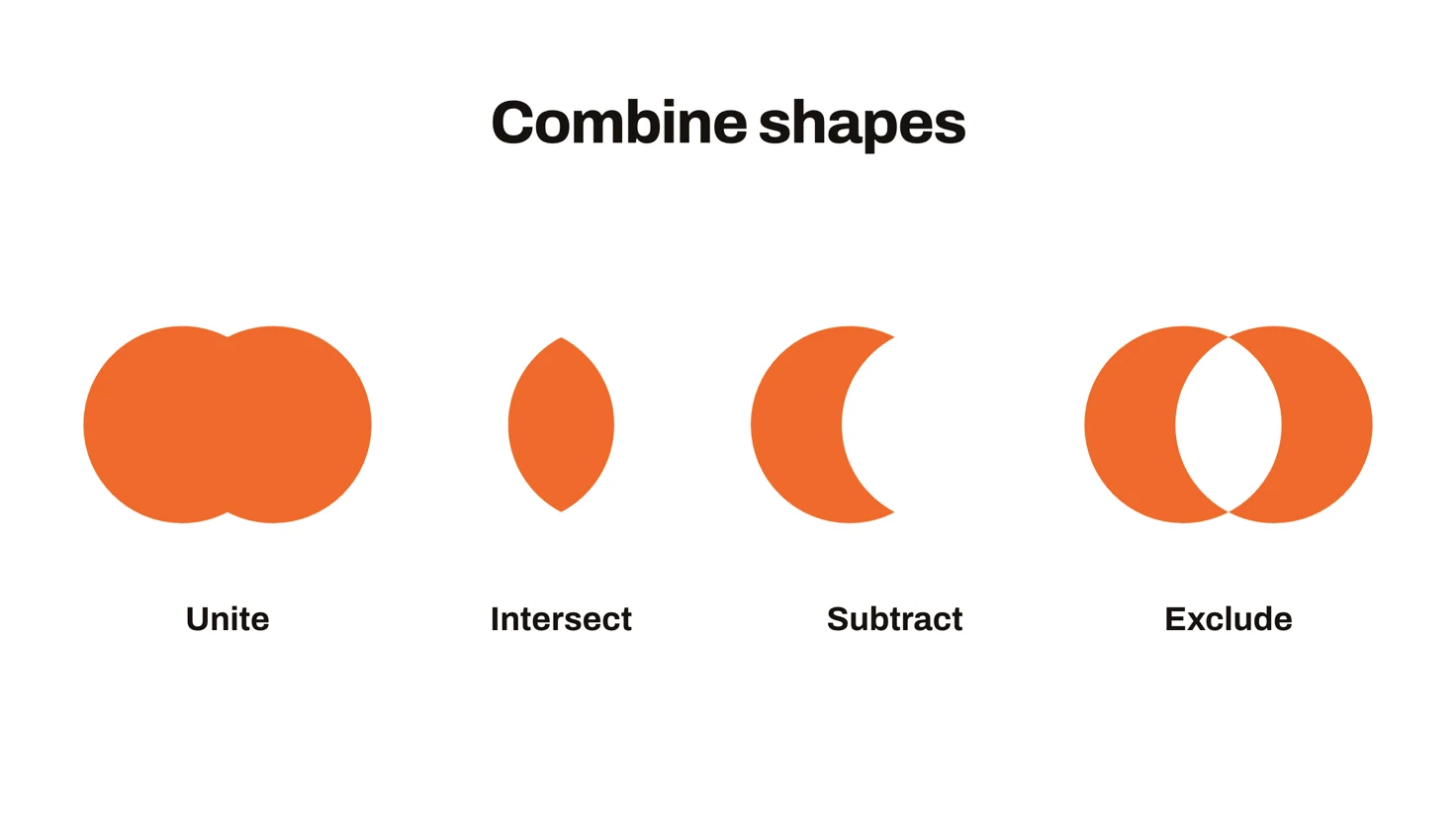
Combining turns two or more shapes into one shape with a new outline: a crescent moon, a speech bubble with its tail or a logo built from simple pieces.
Combine shapes
- Click the first shape, then Shift-click the others. The result takes the first shape’s style.
- Choose Object › Combine Shapes, then:
- Unite: all the shapes together.
- Intersect: only where they overlap.
- Subtract: the shapes in front cut out of the one at the back.
- Exclude: everything but where they overlap.
The inspector’s Arrange tab has the same four under Combine.
The result is one shape. Move it, resize it and change its fill like any other. Edit › Undo (⌘Z) brings back the shapes you started from.
Shapes that stay as they are
Combine works on two or more of the slide’s own unlocked shapes. They must sit side by side in the same group. Shapes with words, masks or repeaters stay as they are. So do animated shapes: remove their animation first.
Download the finished presentation (ZIP)
Unzip it, then open the folder inside in MarkdownPoint.
Written for the next MarkdownPoint release. On Windows, press Ctrl for ⌘ and Alt for ⌥.