Get started
If a change can’t be saved
When a folder refuses a change, MarkdownPoint keeps the change and says why. Fix the folder and save again, or discard the change.
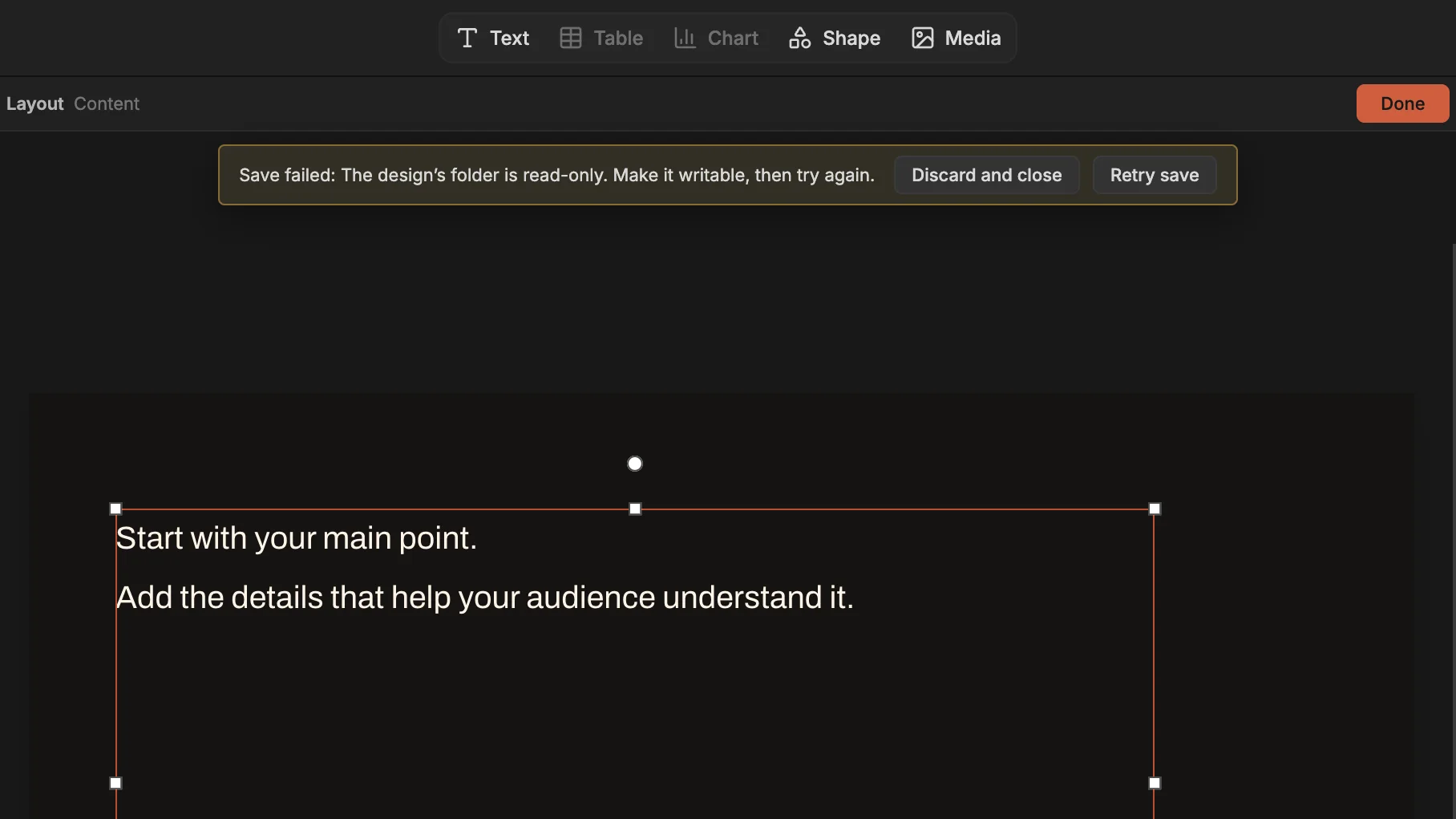
MarkdownPoint saves each change a moment after you make it. If the presentation’s folder or its design’s folder refuses a change, a notice above the slide says why. For a read-only design folder, it reads:
Save failed: The design’s folder is read-only. Make it writable, then try again.
Save again
- Fix what the notice names. For a read-only folder, give yourself permission to write to it. On a Mac, Change permissions for files, folders, or disks shows how. On Windows, the folder’s Properties show its permissions on the Security tab.
- Click Retry save in the notice.
You can keep working while the notice shows. Your changes wait, and Retry save writes them all. The notice stays until the save succeeds.
Discard the changes
Discard and close drops the changes that weren’t saved and closes the presentation. Changes already saved stay.
Close or quit before it’s saved
Closing the presentation asks first: “The presentation couldn’t be closed.” Quitting names the presentation:
MarkdownPoint couldn’t quit because “Harbor Days” couldn’t be saved.
The reason follows below it. Choose Retry save, Discard and close or Cancel. When quitting, the middle choice is Discard and quit. If the save fails again, the presentation stays open and MarkdownPoint asks again.
Two .mdpoint files in one folder
A sync service’s conflicted copy can leave two .mdpoint files in a folder. MarkdownPoint then opens neither and says:
The folder has more than one .mdpoint file: “Quarterly review.mdpoint” and “Quarterly review (conflicted copy).mdpoint”. Remove all but one.
Keep the file you want and move the other out of the folder.
Written for the next MarkdownPoint release. On Windows, press Ctrl for ⌘ and Alt for ⌥.