Animate
Carry objects over to the next slide
Duplicate a slide and move things on it. “Carry over” moves the objects the two slides share into their new places.
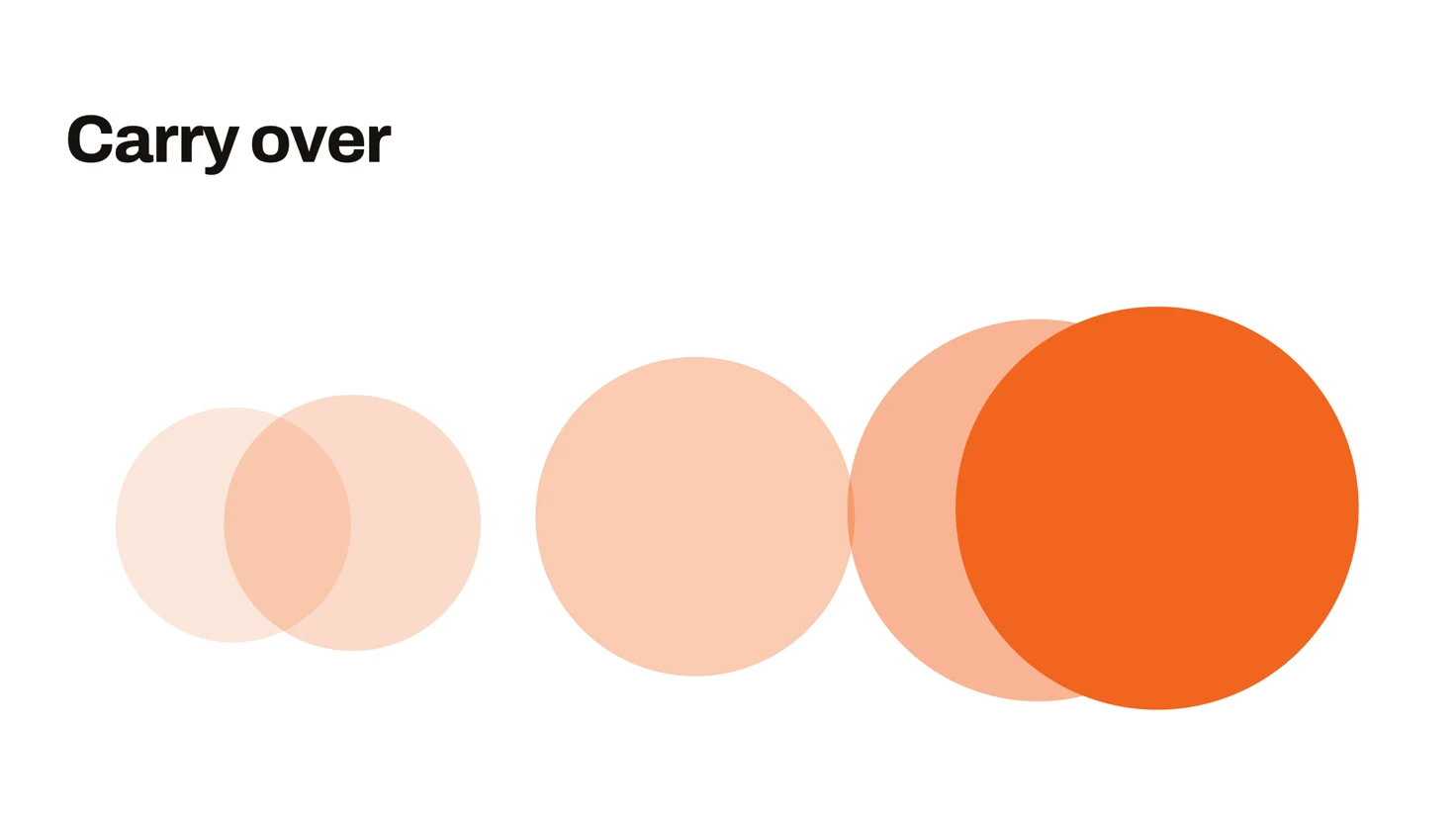
“Carry over” animates the objects two slides share. Each moves, resizes, turns and changes color from one slide to the next. Everything else crossfades.
Make the next slide from this one
- Select the slide and choose Edit › Duplicate Slide (⌘D). The copy keeps the same objects. That’s how “Carry over” pairs them.
- On the copy, move, resize or recolor the objects, change their words, delete some or add new ones.
Choose “Carry over”
- Go back to the first slide and click an empty spot so nothing is selected.
- In the inspector, click Animate.
- Under Transition to next slide, choose Carry over from the Effect menu.
- Set its Duration in seconds, and its Acceleration: Linear, Ease in, Ease out, or Ease in and out.
- Click Preview transition to watch it.
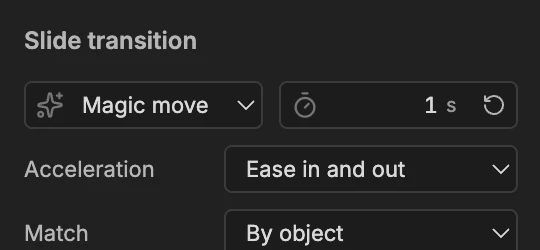
The transition belongs to the slide you leave. It plays as you advance. To carry objects over between every pair of slides, open the Presentation tab and choose Carry over as the Effect under Slide transitions.
Move words, not just text boxes
Match decides what counts as the same object:
- By object: each object moves as a whole. A text box whose words changed crossfades instead.
- By word: words both slides share fly to their new places. A sentence can rearrange itself.
- By character: letters both slides share move into place. One word can turn into another.
When an object fades instead of moving
An object moves only if both slides show it. An object the next slide brings in with a step isn’t there yet when the slide appears. It fades instead. The Animate tab says so and offers Show it from the start.
Download the finished presentation (ZIP)
Unzip it, then open the folder inside in MarkdownPoint.
Written for the next MarkdownPoint release. On Windows, press Ctrl for ⌘ and Alt for ⌥.