Animate
Scroll from one slide to the next
Move two slides as one strip. A 3D model on both crosses from one to the other, and the next slide’s first step starts on the way.
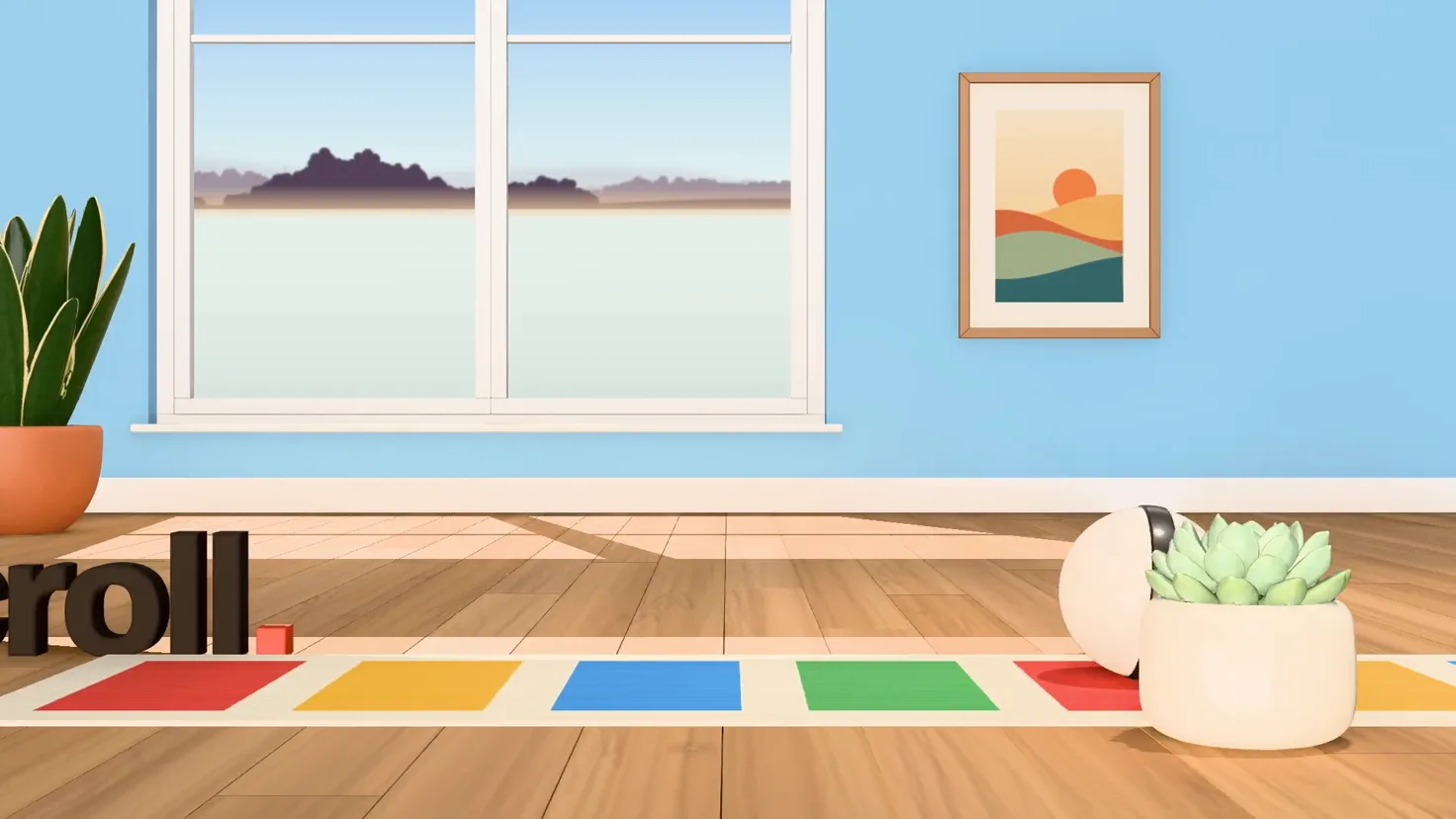
“Scroll” moves the slide you leave and the next one as one long strip. A 3D model on both slides crosses the seam as one object. A ball can roll from one slide onto the next.
Make the next slide from this one
- Select the slide and choose Edit › Duplicate Slide (⌘D). The copy keeps the same objects. That’s how a model on both slides crosses as one. A model pasted onto another slide is a new object and doesn’t cross.
- On the copy, change what the next slide shows.
Choose “Scroll”
- Go back to the first slide and click an empty spot so nothing is selected.
- In the inspector, click Animate.
- Under Transition to next slide, choose Scroll from the Effect menu.
- Choose a Direction: Right to left, Left to right, Bottom to top or Top to bottom.
- Set its Duration in seconds, and its Acceleration: Linear, Ease in, Ease out or Ease in and out.
- Click Preview transition to watch it.
Start the next slide on the way
The next slide’s first step starts as the slides move, even a step set to On click. A ball’s roll or a headline’s entrance plays while the slide arrives.
Scroll on its own
Set Start transition to Automatically and the slide scrolls on once its steps end. Delay adds a wait after the steps. A step set to On click still waits for its click. With On click as the start, the scroll waits for a click too.
Where it plays
Present and movies play the scroll. PowerPoint leaves transitions out, and each slide shows its final state.
Written for the next MarkdownPoint release. On Windows, press Ctrl for ⌘ and Alt for ⌥.