3D
Light a 3D scene
Add point, sun, spot and area lights, choose which ones cast shadows, and let Fast GI bounce light between surfaces that are close.
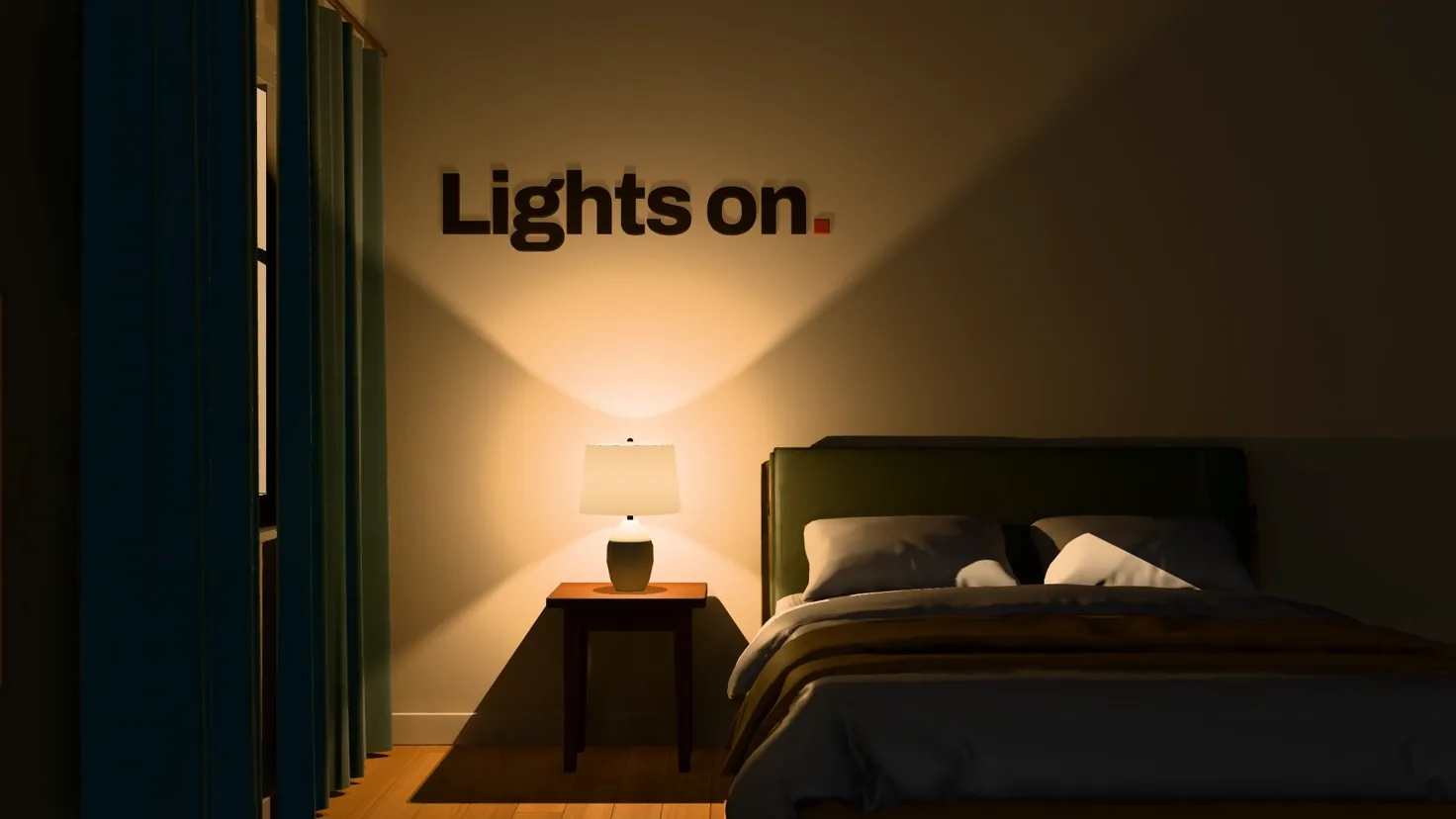
A 3D scene is lit by its lights and by the World. The World is the light that comes from all around it. A new model brings a starting setup. Add lights to change the mood.
Start from a model
Lights belong to a slide with 3D on it. Insert › 3D Model… puts a model on a stage when the slide has none yet. The stage has:
- a Floor that shows only the shadows that fall on it;
- two spot lights, Key and Top, that cast shadows;
- light from all around the scene.
If the slide’s World already gives light, the model gets only the Floor.
Add a light
- Click an empty spot on the slide so nothing is selected.
- In the inspector, click Slide and find the 3D scene section.
- Click Add light and choose Point, Sun, Spot or Area.
The new light shines on the slide’s center from 1,000 pixels away. It’s listed by its type, such as Spot, in Layers and in the 3D scene section. Click a row there to select it.
Choose how it shines
Select the light. In the inspector, click Light if it isn’t showing.
- Type: Point shines in all directions, Sun from one direction across the scene, Spot in a cone and Area from a flat shape.
- Color, and Power in watts for a point, spot or area light. A sun has Strength instead. It’s equally bright at any distance. Changing the type keeps the number.
- Beam angle sets the width of a spot’s cone. Blend sets how much of it fades toward the edge.
- Shape makes an area light a Square, Rectangle, Disk or Ellipse. A disk or an ellipse gives shiny models a round highlight.
- Target aims a sun, spot or area light at a point in the scene.
Cast shadows
New lights cast no shadows. Select Cast shadow to have a light cast them on shadow catchers, such as the stage’s Floor, and on models.
A larger light casts softer shadows. An area light’s Size softens its shadows everywhere. A point or spot light’s Radius softens them only on shadow catchers like the Floor.
Light the whole scene
In the 3D scene section, World is the light from all around. Its Strength is 0 until a model’s stage sets it. Its Color is Environment: a studio’s light and reflections. Choose a color to tint the scene instead.
Let light bounce
Fast GI dims the World’s light where surfaces meet. It can also bounce light from a lit wall onto the floor beside it.
- Select the camera: its row in the 3D scene section, or Camera in Layers.
- In the Camera tab, select the checkbox in the Fast GI section’s header.
- Choose a Method. Global illumination bounces light from lit surfaces onto the ones near them. Ambient occlusion only dims the World’s light where surfaces come close.
- Distance sets how far apart surfaces can be and still change each other’s light.
A model’s stage turns on Fast GI with Ambient occlusion.
Written for the next MarkdownPoint release. On Windows, press Ctrl for ⌘ and Alt for ⌥.